
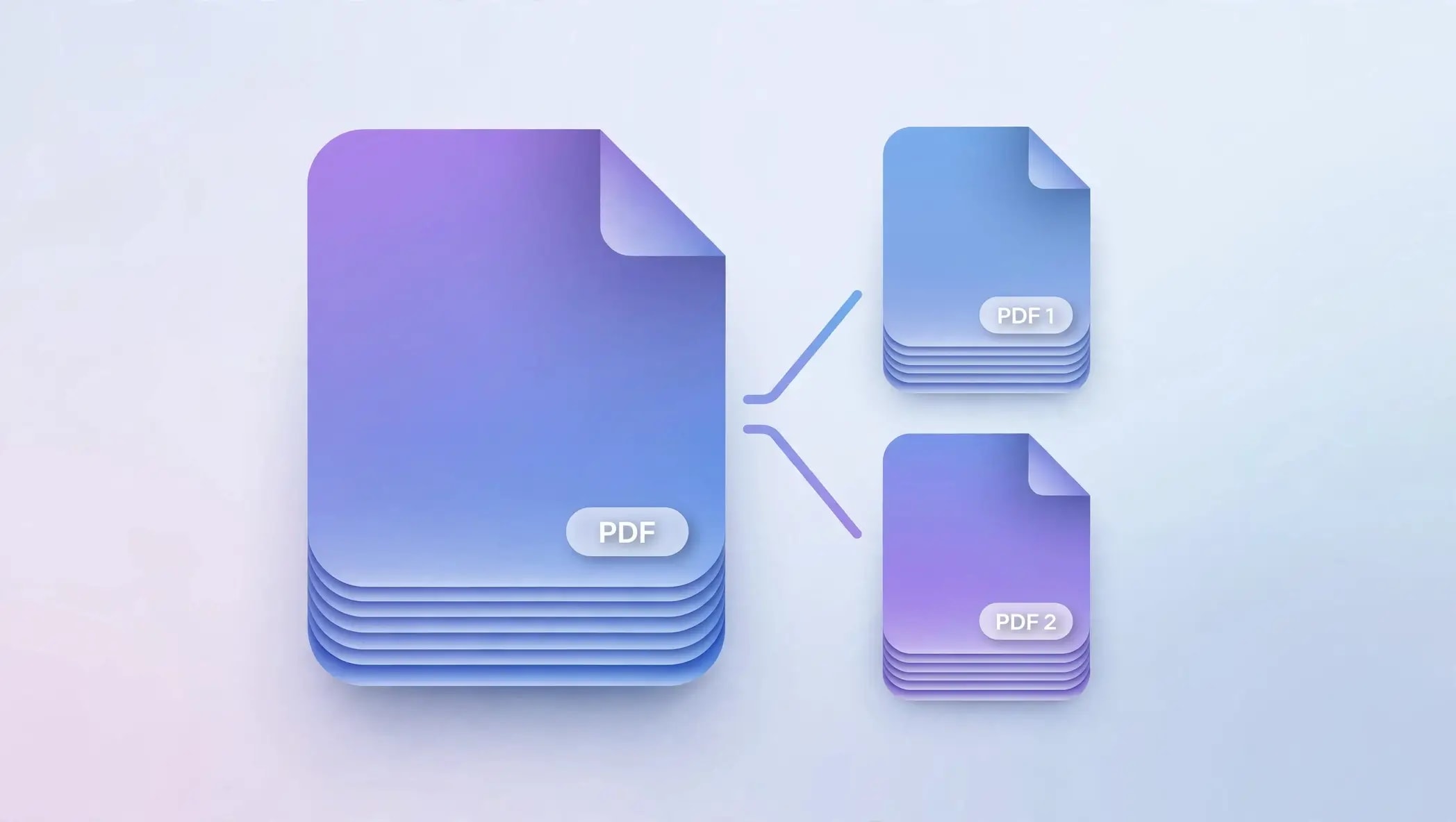

Split, extract, and save specific pages from a PDF file easily
Do you have a PDF with too many pages, but need to get rid of some pages? No need to retain the whole PDF file when you require a few pages.PDF page extractor will allow you to extract the specified number of pages from your existing PDF file and create smaller PDF files.
Using AziPDF, you will be able to split PDF pages in an online mode and sort out the required pages without any software complications.This guide will show you how to split pages in PDF, how to extract page ranges, how to divide a PDF into smaller files, and how to extract pages.
What Does It Mean to Separate Pages in a PDF?
Extract PDF pages involves separating the desired pages from a PDF and creating a new PDF from the separated pages. The separation of the pages in a PDF makes it easier for someone to work with certain pages of a very large PDF document.
For example, if you have a 20-page PDF document but would like to work with pages 3, 7, and 10, then you can separate the pages and create a new PDF document out of them.
How to Separate Pages from a PDF Online
The easiest way to separate PDF pages is to use an online Split PDF tool.

Step 1: Open AziPDF
Go to the AziPDF PDF tools website and open the Split PDF tool.
Step 2: Upload your PDF
Select the PDF file from your computer, phone, or other supported device.
Once the file is loaded, you'll be able to work with its pages.
Step 3: Select the pages you want
Choose the pages or page ranges you want to separate from the original PDF.
For example, if your PDF contains 20 pages and you only need pages 4 - 7, select that range.
Step 4: Split the PDF
Start the PDF splitting process.
AziPDF will create the requested PDF output based on the pages you selected.
Step 5: Download your new PDF
Download the separated PDF file and use it wherever you need.
That's it - you have successfully separated the required pages from your PDF.
Why Separate Pages from a PDF?
Large PDF files often contain information that you don't need to share or keep.
Separating PDF pages can be useful when you want to:
- •Extract specific pages from a large PDF
- •Send only selected pages to someone
- •Create a smaller PDF
- •Separate chapters from a document
- •Extract invoices or receipts
- •Share selected pages from a report
- •Organize PDF documents
- •Save individual PDF pages
Instead of editing the original document, you can simply split the pages you need into a new PDF.
Ways to Separate PDF Pages
How to Extract Specific Pages from a PDF
Sometimes you don't need a continuous page range.
For example, imagine you have a 15-page PDF but only need pages:
2, 5, 8, and 12
Instead of keeping the complete document, you can select the required pages and create a new PDF containing only those pages.
This is especially useful for:
- •Reports
- •Applications
- •Study material
- •Business documents
- •Contracts
- •Presentations
- •Financial documents
How to Split a PDF into Page Ranges
You can also divide a large PDF into smaller sections.
For example, suppose your PDF contains 20 pages and you want to divide it into four separate documents:
- •Pages 1–5
- •Pages 6–10
- •Pages 11–15
- •Pages 16–20
A PDF splitter can save each selected range as a separate PDF, making large documents easier to manage and share.
How to Extract One Page from a PDF
Need only one page from a PDF?
You can extract that individual page and save it as a separate PDF document.
For example, if you have a 50-page report and only need page 25, you can separate page 25 instead of downloading or sharing the entire report.
This is useful when sending a single:
- •Invoice
- •Certificate
- •Form
- •Receipt
- •Agreement page
- •Report page
- •Application page
Can I Separate Multiple Pages at Once?
Yes. You can separate multiple pages or page ranges from a PDF instead of processing each page individually.
For example, from a 30-page PDF, you may need:
- •Pages 1–3
- •Pages 8–10
- •Page 18
- •Pages 25–27
Selecting the required pages can save time and avoid creating unnecessary copies of the entire document.
Can I Split a PDF into Separate Files?
Yes. The technique can also be employed to split a big document into several PDF documents.
For instance, if you have a 100-page PDF file, you may require splitting it to form different parts.
Splitting the PDF into small files makes files:
- •Easier to share
- •Easier to store
- •Faster to open
- •Easier to organize
- •More convenient to print
Separate PDF Pages Without Installing Software
One does not have to download any desktop software to separate PDF pages.
In AziPDF, users can find PDF options through their browsers.
Thus, the user can easily work on:
- •Windows
- •Mac
- •Laptop
- •Tablet
- •Smartphone
Simply open the PDF tool, select your document, choose the pages you need, and create your new PDF.
Is It Free to Separate PDF Pages?
Yes, PDF page splitting can be done for free with AziPDF.
When choosing a PDF splitter, it's useful to consider:
- •Whether it requires registration
- •File-size limitations
- •Watermarks
- •Processing speed
- •Page-selection options
- •Privacy and file handling
AziPDF is designed as a free, privacy-first PDF toolkit, giving you access to multiple PDF tools from your browser.
Is Separating PDF Pages Safe?
PDF documents can contain private or sensitive information, so it's important to understand how a PDF service handles your files.
AziPDF follows a privacy-first approach, with local browser processing where supported. This helps you work with documents without unnecessarily sending them to a remote server.
For sensitive documents, always choose PDF tools that clearly explain how files are processed and handled.
Tips for Separating PDF Pages
Before splitting your document, keep these tips in mind:
Check the page numbers
Make sure you've selected the correct pages before creating the new PDF.
Use page ranges when possible
If you need consecutive pages, selecting a range such as 5–10 is faster than selecting every page individually.
Check the Output
Check the outputted PDF to make sure it has all the necessary pages and that they are arranged correctly.
Save the Original PDF File
If the original file is valuable, save it first before you make any edits or split it into other files.
Frequently Asked Questions
How do I separate pages from a PDF?
Open the AziPDF Split PDF tool, upload your PDF, select the pages or page ranges you need, split the document, and download the resulting PDF.
Can I extract one page from a PDF?
Yes. You can select an individual page and save it as a separate PDF document.
Can I extract multiple pages from a PDF?
Yes. You can select multiple pages or page ranges and create a new PDF containing the pages you need.
Can I separate non-consecutive PDF pages?
Yes. If your PDF tool supports individual page selection, you can select pages that aren't next to each other and create a separate PDF from them.
Can I split a PDF into multiple files?
Yes. You can divide a large PDF into smaller documents by selecting different page ranges.
Is there a free way to split PDF pages?
Yes. You can use a free online PDF splitter such as AziPDF to separate pages without needing traditional desktop PDF software.
Can I separate PDF pages on my phone?
Yes. You can use AziPDF through a compatible mobile browser, allowing you to split PDF pages without installing desktop software.
Split PDF Pages Separately Using AziPDF
There’s no need to have the whole PDF file when you just need some pages out of it.
Regardless if you require splitting a single page, several pages, page range, or even split a lengthy PDF file into different files, PDF splitters make that a lot easier.
Using AziPDF, you can have a full-featured set of PDF tools for free right on your browser.
Check out AziPDF PDF tools to split the needed pages from your PDF file.
Need Specific Pages From Your PDF? Separate Them Quickly and for Free With AziPDF.
Split PDF NowSafe in our hands
AziPDF takes your privacy seriously. Remember that...