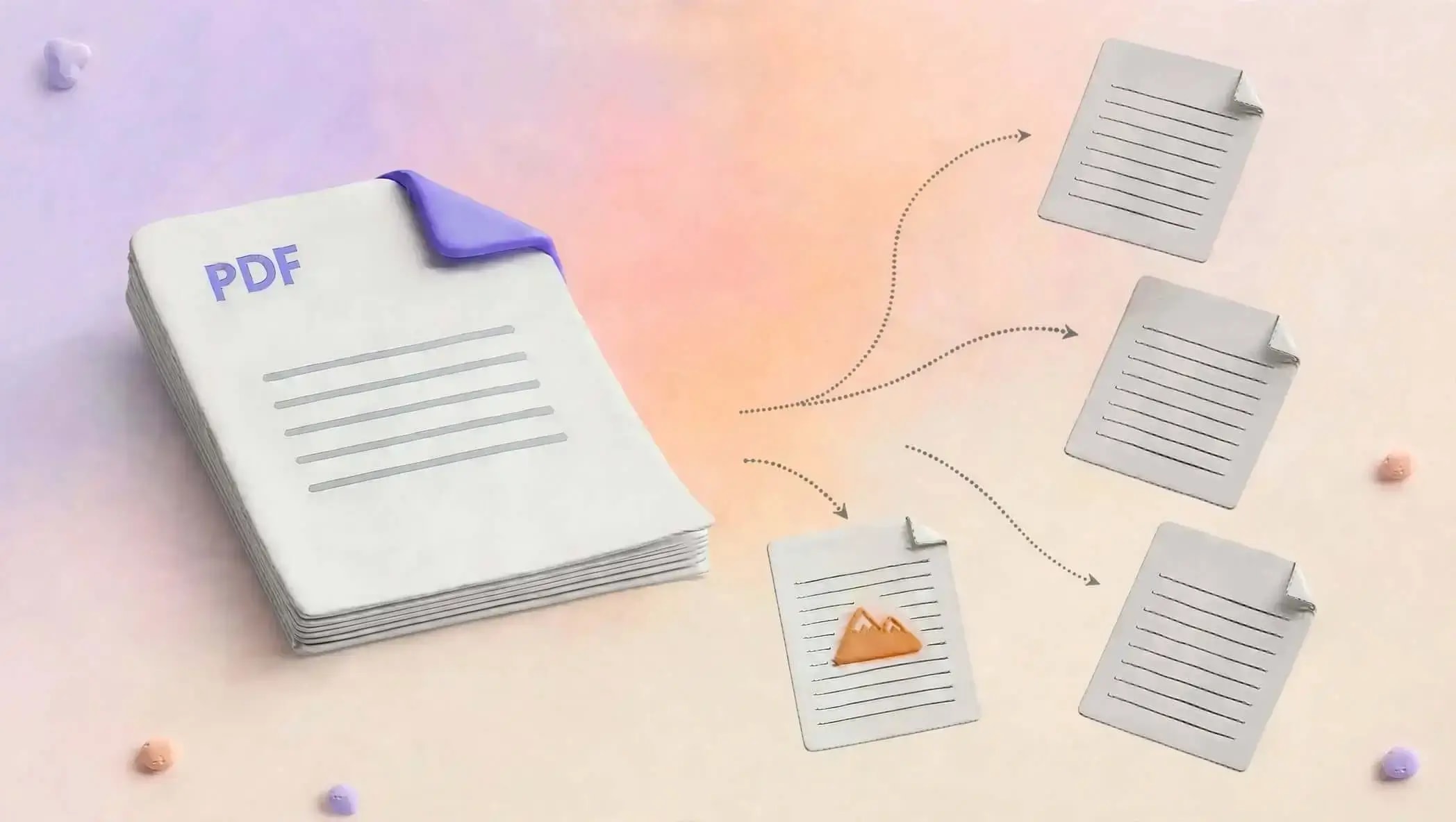
Ever been faced with a lengthy PDF, when you needed just some pages out of it? You can avoid emailing or storing the whole document by extracting the pages that you need and creating a new PDF.
The ability to extract pages from PDF documents can come in handy while working on reports, invoices, contracts, presentations, applications, and even studying materials among others. All this can be done easily using AziPDF.
What Does It Mean to Extract Pages from a PDF?
Extracting pages means taking selected pages from an existing PDF and saving them as a new PDF file.
For example, imagine you have a 50-page report but only need pages 12, 18, and 25. Rather than sending all 50 pages, you can extract those specific pages and create a smaller PDF containing only the information you need.
Your original PDF remains separate, while the extracted pages can be used as a new document.
Why Extract Pages from a PDF?
There are many situations where extracting PDF pages can save time and make document management easier.
You may want to:
- •Share only specific pages with someone
- •Extract a particular chapter from a long document
- •Separate invoices or receipts from a PDF
- •Submit only the required pages of an application
- •Save important pages as a separate document
- •Create a smaller PDF for sharing
- •Keep selected pages for future reference
Instead of working with an entire document, you can create a focused PDF containing only the pages that matter.
How to Extract Pages from a PDF Online
You can extract selected pages from your PDF using an online PDF tool such as AziPDF.
Step 1: Open the PDF page extraction tool
Open the Extract Pages from PDF tool on AziPDF.
Step 2: Upload your PDF
Select the PDF file you want to work with from your device.
Step 3: Select the pages you need
Choose the pages you want to extract. Depending on your document, you may need one page, several individual pages, or a continuous range.
For example:
- •Page 5
- •Pages 5–10
- •Pages 2, 7, and 15
- •Multiple selected pages from different parts of the document
Step 4: Extract the selected pages
After selecting the pages, start the extraction process. AziPDF creates a new PDF containing the pages you selected.
Step 5: Download your new PDF
Once the extraction is complete, download the new PDF and use it wherever you need.
Your original document can remain unchanged, while the extracted file contains only the pages you selected.
Can I Extract One Page from a PDF?
Yes. If you only need one page, you can select that page and create a separate PDF containing only that page.
For example, if a 30-page document contains an important certificate on page 17, you can extract page 17 instead of sending the complete document.
Can I Extract Multiple Pages from a PDF?
Yes. You can select multiple pages from a PDF and save them together as a new document.
For example, if you need pages 3, 8, 12, and 20 from a 25-page document, you can select those pages and create a new PDF containing the required content.
This is particularly useful when the pages you need are located in different parts of a document.
Extracting Pages vs. Splitting a PDF
Although these terms are sometimes used interchangeably, they can describe slightly different tasks.
Extracting pages usually means selecting particular pages from a PDF and creating a new PDF from them.
Splitting a PDF generally means dividing a larger PDF into smaller files or sections.
For example:
- •Extract pages 4, 7, and 10 → creates a PDF with those selected pages.
- •Split pages 1–10 and 11–20 → creates separate PDF sections.
The right method depends on how you want to organize your document.
Why Should You Extract Pages and Not Take Screenshots?
Screenshots may appear to be a fast method of doing this work, but it may bring about some unnecessary complications. This process makes your PDF pages become images, which can reduce the quality of the text.
With pages extraction, your pages will remain in PDF format, which makes sharing, storing, and printing much easier.
If you want to actual PDF pages, then extraction is more feasible than screenshots.
Common Reasons to Extract PDF Pages
Business Documents
Businesses often work with lengthy reports, proposals, invoices, and agreements. Extracting relevant pages can make it easier to share specific information with colleagues or clients.
Education
For students and teachers, there are instances where they will be required to extract particular chapters, assignments, or reference pages from large academic papers.
Applications and Forms
Where there are applications that need particular pages from the document, the user extracts those pages so that he/she prepares the application.
Contracts and Agreements
There are situations when you will need to share particular pages of the agreement or contract, but not the whole document.
Invoices and Records
Where the records of different documents are available in a single PDF, extraction helps to get particular pages.
Tips for Extracting PDF Pages
Before you create your new PDF, please check the page numbers well because, if your document has many pages, viewing the pages before extracting could help you to avoid extracting any unwanted pages.
It would be a good practice to open the downloaded extracted PDF file and ensure that all the desired pages have been extracted into the new PDF file.
Extract PDF Pages Online with AziPDF
Since there are situations where one might not require the whole document, there is absolutely no need for you to continue using the entire PDF file. It becomes easy to handle the files by just extracting what you actually need.
With AziPDF, you can extract selected pages from a PDF and create a new document from the pages you need.
Try the AziPDF PDF page extraction tool to quickly separate the pages that matter to you.
Frequently Asked Questions
How do I extract pages from a PDF?
Open a PDF page extraction tool, upload your PDF, select the pages you need, extract them, and download the resulting PDF.
Can I extract a single page from a PDF?
Yes. You can select one page and create a separate PDF containing that page.
Can I extract non-consecutive pages?
Yes, when the tool supports individual page selection, you can choose pages from different parts of the document and create a new PDF from them.
Does extracting pages change the original PDF?
Page extraction creates a separate PDF. Your original file remains available as the original document.
Is extracting PDF pages useful for large documents?
Yes. If you only need a small section of a large document, extracting those pages can make the resulting file easier to share and manage.
Can I extract pages from a PDF without taking screenshots?
Yes. Direct PDF page extraction creates a new PDF from the selected pages without requiring you to convert the pages into screenshots first.
What is the difference between extracting and splitting a PDF?
Extracting usually focuses on selecting particular pages for a new PDF, while splitting generally divides a PDF into multiple smaller files or sections.
Conclusion
Removing pages from a PDF is an easy method of handling large files without having to share or manage the whole file.
Regardless of whether you require one page, several pages or a particular section of your file, removing pages can assist in making a more compact PDF.
Through AziPDF, you are able to pick out the necessary pages and form another PDF file.
Delete pages you don’t need from your PDF file
Remove PDF PagesSafe in our hands
AziPDF takes your privacy seriously. Remember that...