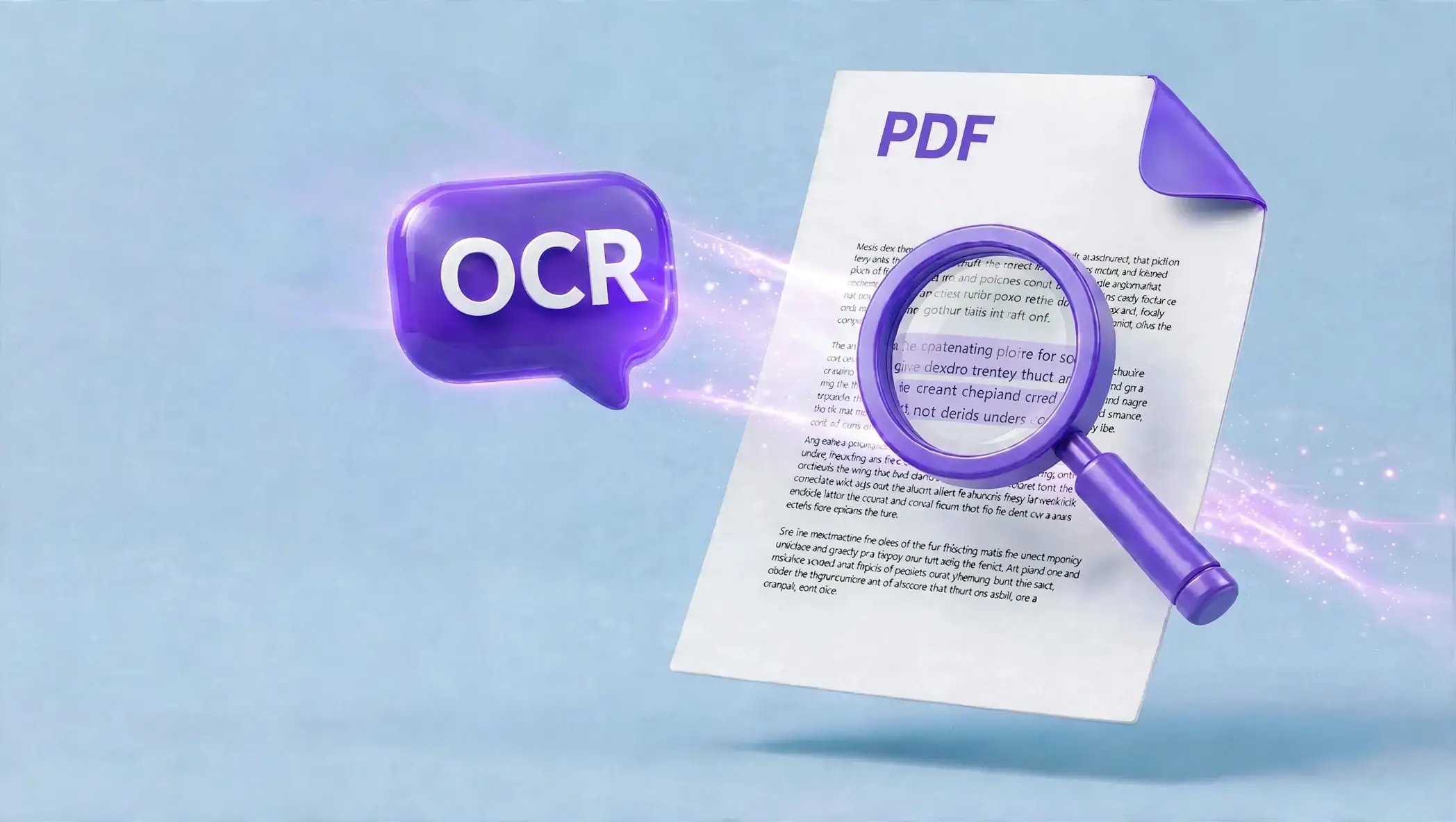

Have you ever opened a scanned PDF and tried to search for a word, only to find that nothing happens? This usually happens because the PDF contains images of text rather than actual selectable text.
OCR can solve this problem.
With AziPDF OCR, you can turn scanned and image-based PDFs into searchable documents directly in your browser. OCR recognizes the text inside your PDF and adds an invisible, selectable text layer while keeping the original appearance of your document.
Whether you need to search a scanned book, copy text from an old document, process invoices, or make business records easier to work with, OCR can save you from manually typing everything again.
In this guide, you'll learn what OCR is, how it works, how to make a scanned PDF searchable, how to copy text from a PDF, and how to use OCR with multiple languages.
Key Takeaways
- •OCR stands for Optical Character Recognition.
- •OCR can recognize text inside scanned and image-based PDF files.
- •A searchable PDF allows you to find, select, and copy text.
- •AziPDF adds an invisible text layer underneath the original PDF content.
- •The original visual appearance of your document remains unchanged.
- •AziPDF supports 100+ languages.
- •You can select up to 3 languages for a single OCR conversion.
- •Multiple PDF files can be processed at once.
- •OCR works directly in modern web browsers on computers and mobile devices.
- •Clear, high-quality scans generally produce better OCR results.
What Is OCR?
OCR stands for Optical Character Recognition.
It is a technology that recognizes characters and words inside images or scanned documents and converts that information into machine-readable text.
A normal scanned PDF may look like a document, but technically each page can simply be an image.
For example, imagine you scan a printed 20-page book.
You can see all the words on the pages, but your PDF reader may not be able to:
- •Search for a specific word
- •Select text
- •Copy and paste text
- •Extract text
- •Use the text with other applications
OCR analyzes the page image and recognizes the text.
It then adds a searchable text layer to the PDF.
The original page remains visible, while the recognized text sits behind it.
What Is a Searchable PDF?
A searchable PDF is a PDF that contains a text layer that your PDF reader can recognize.
This means you can use features such as:
Search
Press Ctrl + F on Windows or Command + F on Mac and search for a word or phrase.
Select
Highlight individual words or paragraphs.
Copy
Copy recognized text and paste it into another application.
Find information faster
Instead of manually checking every page, you can search for a keyword and jump directly to the relevant location.
A scanned PDF without OCR may not support these functions because the visible words are stored as part of an image.
Why Make a Scanned PDF Searchable?
There are many reasons to convert a scanned PDF into a searchable document.
Find Text Quickly
Large documents can contain hundreds of pages.
Searching for a keyword is much faster than manually checking every page.
Copy Text From Scanned Documents
OCR allows you to select and copy recognized text from scanned pages.
This can be useful when working with:
- •Books
- •Reports
- •Invoices
- •Receipts
- •Forms
- •Contracts
- •Research papers
- •Historical documents
Make Documents Easier to Manage
Searchable PDFs are easier to work with because you don't have to manually read through the entire document whenever you need specific information.
Reduce Manual Typing
Without OCR, you may have to manually type information from a scanned document.
OCR can recognize printed text automatically and reduce this repetitive work.
Improve Document Accessibility
A searchable text layer can make scanned documents easier to navigate and work with across different PDF applications.
Who Can Benefit From OCR?
OCR is useful for many different types of users.
Students
Students can use OCR to search and copy text from scanned books, lecture notes, research papers, and study materials.
Teachers
Teachers can convert scanned worksheets, notes, and educational documents into searchable PDFs.
Businesses
Businesses often work with invoices, receipts, contracts, forms, reports, and archived documents.
OCR can make these documents easier to search and process.
Researchers
Researchers working with scanned books, historical records, journals, and archived documents can quickly locate specific words or phrases.
Accountants
Invoices, receipts, and financial documents can contain important information that needs to be located quickly.
Offices and Organizations
Organizations with large archives of scanned documents can use OCR to make their records easier to search.
How to Make a Scanned PDF Searchable
The easiest way to make a scanned PDF searchable is to use an online OCR PDF tool.
With AziPDF, the process takes just a few steps.
Step 1: Open the AziPDF OCR PDF Tool
Open the AziPDF OCR PDF tool in your browser.
You don't need to install traditional PDF software to get started.
Step 2: Upload Your PDF
Select the scanned or image-based PDF you want to process.
You can also drag and drop your PDF into the tool.
AziPDF can process one or more PDF files.
Step 3: Select Your Languages
Choose the languages used in your document.
AziPDF OCR supports 100+ languages, and you can select up to 3 languages for a single conversion.
This can be particularly useful for documents containing multiple languages.
For example, a document may contain English and Hindi text on the same page.
Step 4: Start OCR
Start the OCR process.
AziPDF analyzes pages that contain image-based content and recognizes the text.
The tool adds an invisible text layer underneath the original page.
Step 5: Download Your Searchable PDF
Once processing is complete, download your PDF.
The document should look the same as the original, but recognized text can now be searched, selected, and copied.
That's it.
Your scanned PDF is now much easier to work with.
How Does OCR Work?
OCR generally works by analyzing the visual information contained in a document.
The process can be simplified into a few stages.
1. The PDF Page Is Analyzed
The OCR system examines the page image.
2. Text Is Identified
The system detects characters, words, and text regions.
3. Characters Are Recognized
The OCR engine identifies the characters and converts them into machine-readable text.
4. A Text Layer Is Added
The recognized text is placed into an invisible layer associated with the original page.
5. The PDF Becomes Searchable
Your PDF reader can now recognize the text.
This allows you to search, select, and copy the recognized content.
AziPDF uses Tesseract.js for browser-based OCR processing.
Does OCR Change the Appearance of a PDF?
No.
AziPDF OCR adds an invisible text layer underneath the original document content.
The original visual layout remains unchanged, including the page image, colors, and overall appearance.
For example, if your original scanned page looks like this:
Scanned page → OCR → Same-looking page + searchable text
You can still see the original scan, but the recognized text can now be selected and searched.
How to Search Text Inside a Scanned PDF
Once your PDF has been processed with OCR, searching becomes much easier.
On Windows
Open the PDF and press:
Ctrl + F
Then enter the word or phrase you want to find.
On Mac
Use:
Command + F
Enter your keyword and your PDF reader will search the recognized text.
For large documents, this can save significant time.
Instead of manually checking 100 pages, you can search for a specific word and jump to the relevant page.
How to Copy Text From a Scanned PDF
If your scanned PDF has been processed with OCR, you can usually select the recognized text.
Follow these steps:
- Open your OCR-processed PDF.
- Find the text you want to copy.
- Highlight the text.
- Right-click and select Copy.
- Paste the text into your preferred application.
You can use the copied text in:
- •Microsoft Word
- •Google Docs
- •Notes
- •Spreadsheets
- •Research documents
- •Other PDF tools
OCR can therefore turn a scanned document from a static image into something much easier to work with.
Can OCR Process Multiple PDF Files?
Yes.
AziPDF allows you to upload multiple PDF files for OCR processing.
This can be useful when you have several scanned documents that need to be made searchable.
For example, instead of processing:
- •Report 1
- •Report 2
- •Invoice 1
- •Invoice 2
- •Contract 1
one by one, you can upload multiple PDF files and process them together.
When multiple files are processed, AziPDF packages the resulting files into a ZIP archive for download.
Can OCR Recognize Multiple Languages?
Yes.
AziPDF OCR supports 100+ languages.
You can select up to 3 languages for each conversion, which is useful for documents containing multiple languages.
For example, a document may contain:
- •English
- •Hindi
- •Arabic
Selecting the appropriate languages can help the OCR system recognize the different scripts correctly.
What Types of PDFs Work Best With OCR?
OCR is most useful for PDFs where the text is stored as an image.
Common examples include:
Scanned Documents
Documents scanned using a scanner or mobile device are often image-based.
Books
Scanned books can contain hundreds of pages that are difficult to search manually.
Invoices
OCR can make scanned invoices easier to search and copy.
Receipts
Receipts saved as scanned PDFs can benefit from searchable text.
Forms
Scanned forms can be processed so that their printed content becomes selectable.
Historical Documents
Archived documents may exist only as scanned images and can benefit from OCR.
Research Papers
Researchers can search large collections of scanned academic material more easily after OCR.
If your PDF already contains selectable text, OCR may not be necessary.
How Accurate Is OCR?
OCR accuracy depends heavily on the quality of the original document.
A clear, high-resolution scan usually produces better results than a blurry or poorly scanned document.
Factors that can affect OCR include:
- •Image resolution
- •Blur
- •Skewed pages
- •Background noise
- •Poor lighting
- •Small text
- •Unusual fonts
- •Handwriting
- •Damaged documents
- •Low-quality scans
For best results, start with the clearest version of your document available.
AziPDF also applies image preprocessing to help improve text recognition.
Can OCR Read Handwriting?
OCR works best with printed text.
Handwritten text can be much more difficult to recognize accurately because handwriting varies significantly between people.
If your document contains handwriting, the OCR result may require manual checking and correction.
For printed documents, OCR generally provides a much more suitable workflow.
Can I OCR a PDF on My Phone?
Yes.
AziPDF OCR works through modern web browsers on:
- •Android phones
- •iPhones
- •Tablets
- •Laptops
- •Desktop computers
This means you can make a scanned PDF searchable without needing to install traditional desktop OCR software.
Is Online OCR Safe?
When processing private documents, it is important to understand where your files are processed.
AziPDF performs OCR directly in your browser using Tesseract.js, and your PDF files are not uploaded to AziPDF's servers for OCR processing.
This browser-based approach is particularly useful when working with documents containing private or sensitive information.
However, you should always review the privacy practices of any online document tool before processing confidential files.
When Should You Use OCR?
OCR is useful when your PDF looks like a document but behaves like an image.
You should consider OCR when:
- •You cannot select text.
- •Ctrl + F cannot find visible words.
- •You need to copy text from a scanned document.
- •You have a scanned book.
- •You need to search a large scanned report.
- •You have image-based invoices or receipts.
- •You want to make archived documents searchable.
- •You need to work with multiple scanned PDFs.
When Do You Not Need OCR?
OCR isn't necessary for every PDF.
If you can already:
- •Select text
- •Copy text
- •Search for words
- •Highlight paragraphs
then your PDF probably already contains a searchable text layer.
In that case, applying OCR may not provide much additional benefit.
Tips for Better OCR Results
Use a Clear Scan
Higher-quality source documents generally produce better recognition results.
Keep Pages Straight
Straight pages are easier for OCR systems to analyze than heavily rotated or skewed pages.
Choose the Correct Languages
Select the languages that actually appear in your document.
AziPDF allows up to 3 languages per OCR conversion.
Check the Result
OCR is not perfect.
After processing an important document, review the recognized text and check important names, numbers, dates, and other details.
Keep the Original PDF
Always keep a copy of your original document before processing important files.
Frequently Asked Questions
What is OCR in a PDF?
OCR stands for Optical Character Recognition. It recognizes text contained in scanned or image-based PDF pages and adds a searchable text layer.
How do I make a scanned PDF searchable?
Upload your scanned PDF to the AziPDF OCR PDF tool, select the document languages, start OCR processing, and download the resulting searchable PDF.
Can I copy text from a scanned PDF?
Yes. After OCR processing, recognized text can be selected and copied from the PDF.
Does OCR change the PDF appearance?
No. AziPDF adds an invisible text layer beneath the original page content, so the visual appearance of the PDF remains unchanged.
How many languages does AziPDF OCR support?
AziPDF OCR supports more than 100 languages, and you can select up to 3 languages for a single conversion.
Can I OCR multiple PDF files?
Yes. You can upload multiple PDF files for OCR processing. When multiple files are processed, AziPDF packages the results into a ZIP file.
Can OCR recognize handwriting?
OCR is primarily designed for printed text. Handwritten text can be less reliable and may require manual correction.
Can I use OCR on my phone?
Yes. AziPDF OCR works on modern browsers on Android phones, iPhones, tablets, laptops, and desktop computers.
Is AziPDF OCR free?
AziPDF currently presents its OCR PDF tool as a free tool that can be used directly from the browser.
Is my PDF uploaded to AziPDF?
For OCR processing, AziPDF states that the OCR runs in your browser using Tesseract.js and that PDF files are not uploaded to its servers.
Make Your PDF Searchable With AziPDF
Scanned PDFs don't have to remain difficult to search or copy.
With OCR, you can turn image-based documents into searchable PDFs while keeping their original appearance.
Whether you're working with scanned books, invoices, receipts, reports, forms, research documents, or archived records, AziPDF makes it easy to add a searchable text layer directly from your browser.
AziPDF supports 100+ languages, allows up to 3 languages per conversion, supports multiple PDF files, and processes OCR directly in your browser. Turn scanned and image-based PDFs into searchable documents with AziPDF OCR.
Make Your Scanned PDF Searchable
OCR PDF NowSafe in our hands
AziPDF takes your privacy seriously. Remember that...